Grant Cycle
One application opportunity, including its application dates, review, and award decisions.

Use this guide if you are authorized to approve the grant amount and funding source.
Use this guide if you are authorized to approve the grant amount and funding source.
Confirm that the application decision is final and that enough funding capacity is available.
Complete the tasks in order. Open a task to see the instructions. Select any screenshot to enlarge it.
Important: Stop if the district or foundation name is wrong.
A Grant Cycle can close while its awarded projects continue. Projects and reports remain available until Project closeout.
One application opportunity, including its application dates, review, and award decisions.
The dates when an awarded project is expected to begin and end. It may continue after the Grant Cycle closes.
The progress and final reports required for an awarded project, with their due dates.
The final checks that formally complete an awarded project after its required reports are accepted.
Start on the GrantsPost sign-in page.
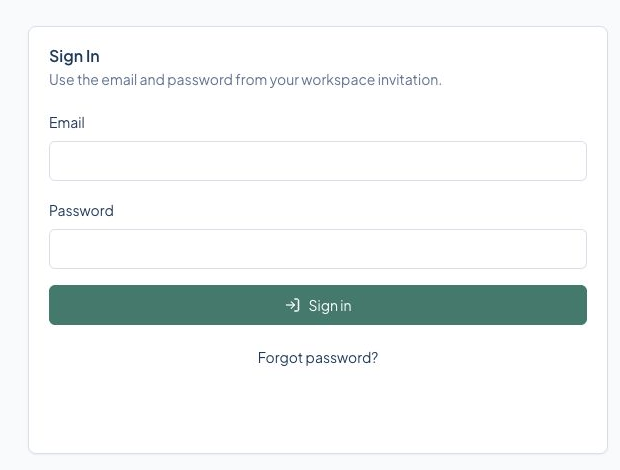
Select the screen to enlarge it. Example data is fictional.
You arrive at the home page for your assigned role.
GrantsPost opens the home page for your assigned role.
Check that you used the email address from the invitation. Use Forgot password? before asking an administrator to resend access.
From the top menu, open Funding.
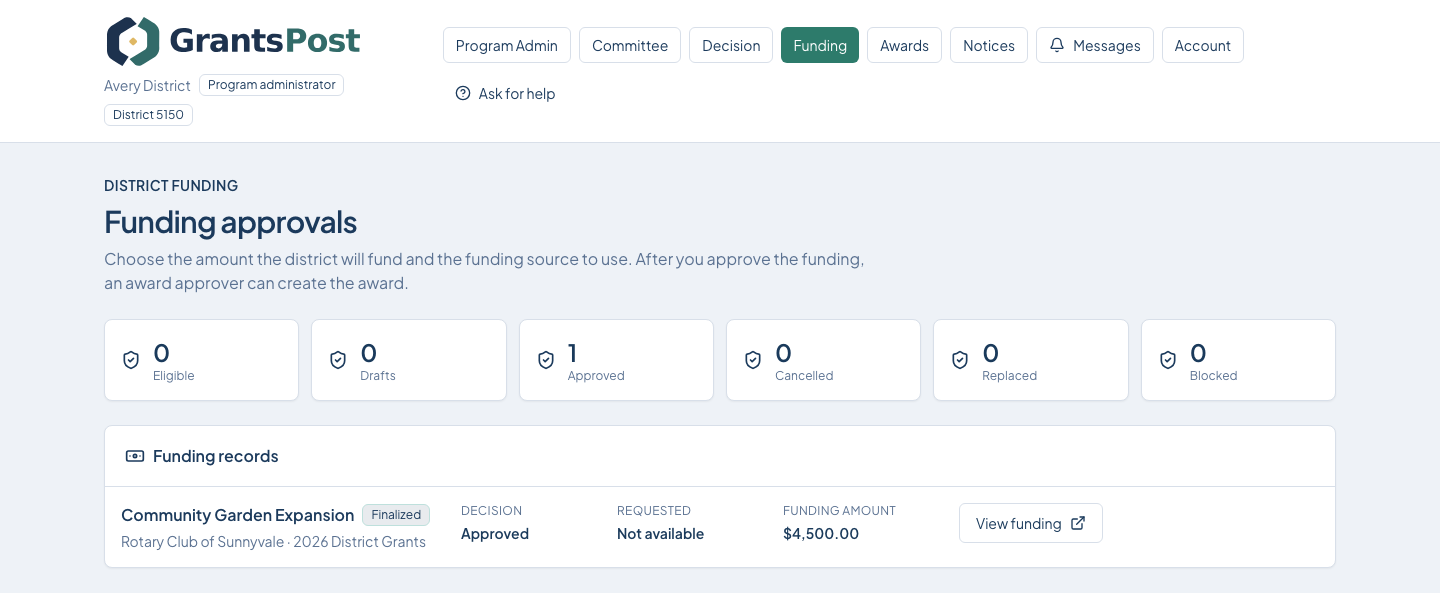
Select the screen to enlarge it. Example data is fictional.
A funding record is ready for final review.
Return to your role's home page and follow the next action shown by GrantsPost.
Use Help or Ask for help. Include the page name and what you were trying to do. Never send your password.
From Funding approvals, select Start funding approval or View funding.
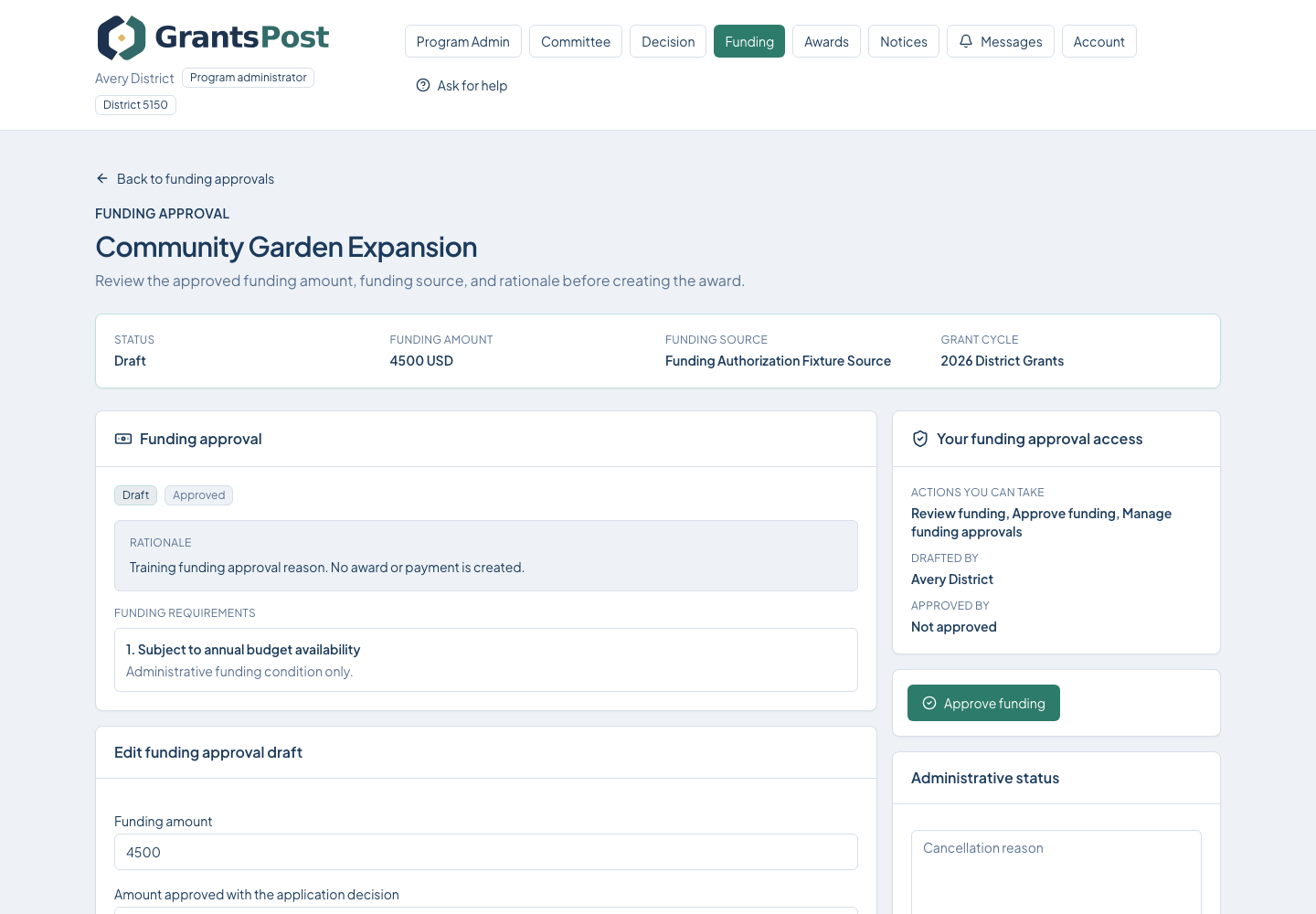
Select the screen to enlarge it. Example data is fictional.
The funding approval says Approved.
An award approver can create the award record.
If Approve funding is unavailable, check your approval access, available capacity, amount, and the final decision.